Personal project / In progress
Not-messenger
Messenger clone (web) with most of its features.
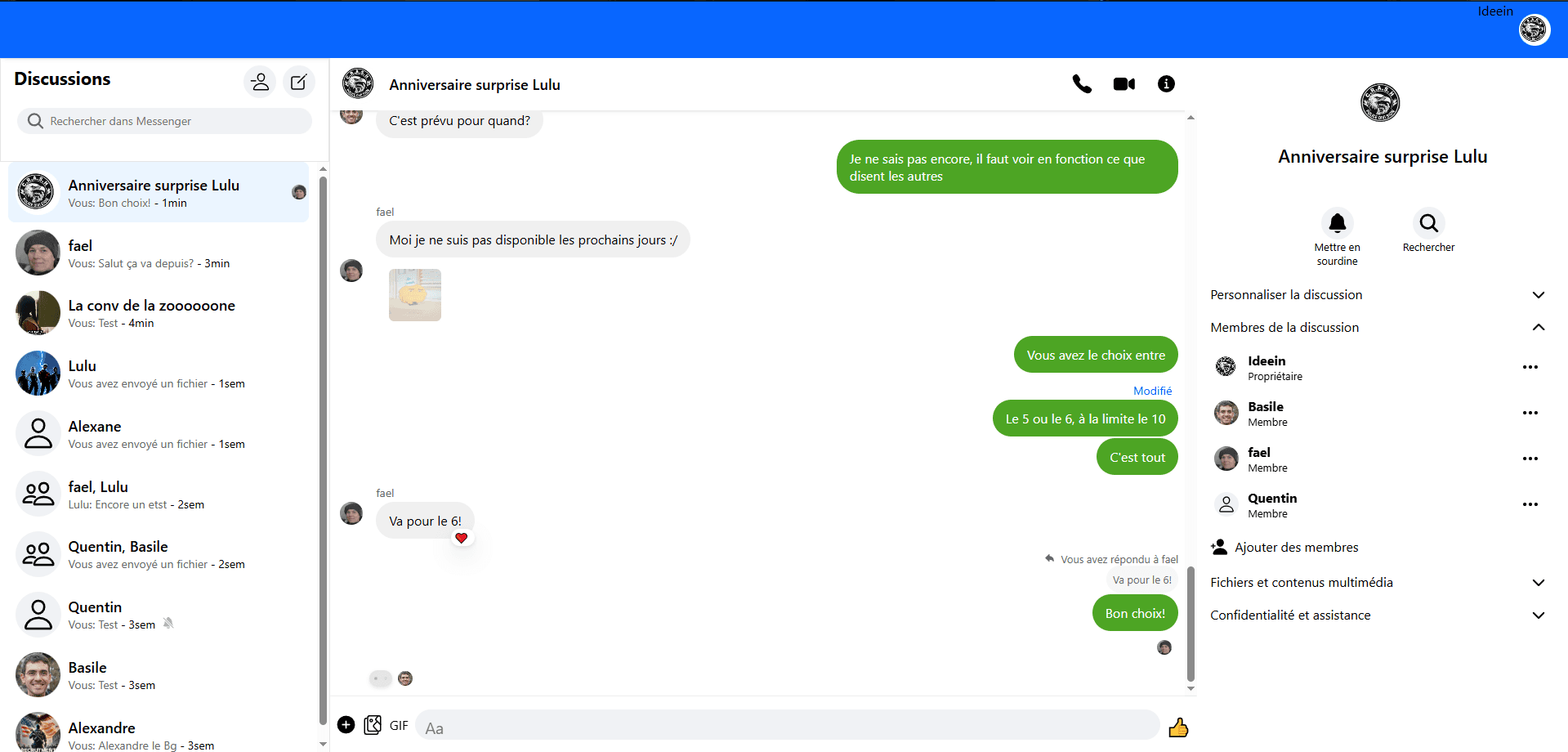
A closer look
01Send/receive a message
Sending
The user can send a message in a conversation. It may include emojis, files, photos, or videos.
The message appears on the right side of the conversation window.
Receiving
Received messages appear on the left side of the window.
Each new message is added after the previous ones, with the sender's name and profile picture displayed.
02Create conversations
The user can search for other users by username and create a conversation with them.
- If they try to create a private conversation with someone they already have one with, instead of creating a new one, the existing conversation will be shown and the message will be sent there.
- They cannot add someone they have blocked.
- They cannot add someone who is already in the add list.
- If the user adds only one person, the conversation is considered "private", and both users will have admin rights.
03Conversations list
When the page loads, the user loads all their conversations.
(Possible improvement: only load a certain number and implement infinite scroll.)
For each conversation, the following are displayed:
- The name of the conversation / the users
- The last message and the time since it was sent
- A blue dot indicating if the user has read the last message
- A settings button
- A "muted" icon if the conversation is muted
Conversations are sorted by descending date of the last message.
If the user is the author of the last message, the profile pictures of users who have seen it are visible.
Conversation settings button
- Add people (group conversation)
- Mute/unmute the conversation
- Delete the conversation for the user
- Leave the conversation (group conversation)
Each time a message is sent in a conversation, that conversation is updated in the list.
04Block user
Blocking a user prevents you from seeing messages they send.
If there's an existing private conversation with that person, it will no longer appear among the regular conversations and will instead be moved to the "Blocked Users" tab. In that conversation, messages sent before the block will still be visible, but any messages sent afterward will not. The same applies to group conversations that include the blocked person. Once the person is unblocked, all messages become visible again.
05Add/remove user of a group conversation
Only in group conversations (non-private), users can be added or removed.
Adding :
A modal allows searching for users to add.
- Only admins can do this
- Search is done by username
- A temporary "currently adding" list lets you quickly remove users before finalizing the addition
- You cannot search for someone already in the conversation
Removing :
- Only admins can do this
- Admins cannot be removed (their admin rights must first be revoked — only the conversation creator or the oldest remaining admin can do this)
- The creator (or oldest admin) cannot be removed
A system message will be displayed to inform all users in the conversation of this change.
06Set/remove user as Admin in a group conversation
Granting admin rights allows the user to:
- Add or remove members from the conversation
A system message will be displayed to inform all users in the conversation of this change.
07Change group conversation photo
Any user can change the name of a group conversation.
- Conversations without a name follow the format: 'User1, User2, User3, ...'
- The conversation name has a maximum of 30 characters
- To apply the name change, the new name must be different from the current one
- Leaving the name empty will revert the conversation to the default format mentioned above
A system message will be displayed to inform all users in the conversation of this change.
08Change conversation emoji
Any user can change the conversation's emoji.
The conversation emoji acts as a quick reaction that users can tap to instantly send a message containing that emoji.
They can choose this emoji from a list of suggested emojis.
A system message will be displayed to inform all users in the conversation of this change.
09Change conversation color theme
Any user can change the conversation's theme color. This only changes the color of the messages sent by that user.
Depending on whether the chosen color is light or dark, the text color will automatically switch between black and white.
10Change conversation members nicknames
Any user can change the nicknames of the members in the conversation.
Each time a user's name is displayed in the conversation — for example, as the author of a message or in a system message —
their nickname will be shown instead.
11Send file/image/video in a conversation
The user can send any type of file in the conversation.
- Files can be added either by clicking the button or by drag & drop
- Each file must not exceed 20MB
- File names cannot contain commas or hyphens
- It's not possible to send the same file multiple times at once
File preview:
- Displays a preview of the files to be sent, with the option to remove them before sending
- Files are shown as an icon with their filename underneath
- Images and videos are directly visible
12Send a GIF dans une conversation
The user can send a GIF (animated image) in a conversation from the GIF button.
This opens a box where they can search for the GIF they want. When they click on it, it sends a message containing the chosen GIF.
Clicking on this message redirects directly to the GIF's webpage.
13Search a message in a conversation
The user can search for a string of at least 3 characters within a conversation.
It returns all messages containing that string
Except:
- If the user has deleted the conversation, messages prior to the deletion date
- Messages the user has deleted for themselves (but still visible to others)
- Messages deleted by the author (deleted for everyone and replaced with "This message was deleted")
- If the user left or was removed from the conversation, messages sent after that date
Clicking on one of the messages in the search results:
If the message is already loaded, the view scrolls to it. Otherwise, the message is fetched along with around ten messages before and after.
The target message is highlighted.
14Mute/unmute a conversation
The user can mute a conversation for various durations or indefinitely until they change it.
Muting the conversation prevents the notification sound from playing when a new message is received.
15Delete a conversation
The user can delete a conversation, which removes it from their conversation list and hides everything prior to that moment.
As soon as a new message is sent in the conversation, it will reappear in the list.
Previous messages, photos, and files will no longer be accessible to the user but will still be available to other participants.
It will also no longer be possible to search for messages sent before that moment.
16Transfer an image/video from a conversation to another
When the user is in the image viewer, they can forward the image to another conversation using a button.
In the modal, their 5 most recent conversations are suggested.
They can also search among their conversations by typing a user's name or the name of a conversation.
17Edit a message
The author of a message can edit it even after 10 minutes have passed since it was sent.
When a message is edited, a "Edited" label appears just above the message.
Clicking on it allows users to view the message's edit history.
18Delete a message
Delete a message for yourself
The user can delete any message for themselves, meaning only they will no longer see it or be able to search for it.
If the deleted message was the last one in the conversation, the conversation preview will display the previous message instead.
Delete a message for everyone
Only the author of a message can perform this action.
The content will be replaced with "This message was deleted", and no one will be able to view or search the original message anymore.
If the deleted message was the last one in the conversation, the preview will also display "This message was deleted".
Both actions are irreversible.
19React to a message with an emoji
Users can react to any message with an emoji.
Five default emojis are suggested, but more can be accessed by clicking the "+" button.
Reactions are displayed below the message.
Clicking on the reactions opens a list showing who reacted with what.
Users can remove their reaction either by clicking the same emoji again in the selection menu or by clicking their emoji in the reaction list.
20Get all files of a conversation
By going into the conversation details, the user can view and download all files that were sent, except those sent after they left the conversation.
21Get all images
To access all images from a conversation, the user can either:
- Go to the conversation info panel, where the most recent images are loaded, and scrolling down loads more.
- Click directly on one of the images contained in a message.
In both cases, this opens the image viewer. It consists of a carousel where the user can click on any image they want to view.
It's possible to navigate through the images directly in the carousel or using the arrows on the sides.
The carousel only displays a limited number of images at a time; depending on whether the user scrolls toward older or newer media, more items will be loaded.
22Reply by quoting a message
Clicking the "reply" arrow on a message allows the user to reply by quoting it.
The user's message will be preceded by a snippet of the quoted message, which helps quickly identify what it's referring to.
Clicking the quote:
If the message is already loaded, scroll to it. Otherwise, load the message along with about ten messages before and after it.
The quoted message will be highlighted.
23See more recent messages
When a conversation loads, only about twenty messages are initially loaded.
The user can scroll up to load more messages.
24Get elder messages
When the user clicks on a searched or quoted message that is not already loaded, the app loads that message along with a few messages before and after it.
As a result, the displayed messages are no longer the most recent ones in the conversation.
The user can:
- Scroll down to load messages that are more recent than the ones currently displayed until reaching the newest ones
- Click the "Return to recent messages" arrow to load the latest messages
If the most recent messages are already loaded, this button scrolls all the way to the bottom
25Signup/Signin
Authentication system using Firebase Auth
Sign Up:
- Choose an email, username, and password
- Create the user in Firebase and in the DB
- Assign a JWT
Login:
Currently (bad practice): I'm using Firebase directly in the frontend. Once authenticated with Firebase, I send a request to the backend to get my JWT. This isn't secure because anyone could request someone else's token. (Early stage of my learning)
I should update this to handle Firebase auth via the backend and then send the token to the frontend once verification is confirmed (like in the Tou project), but for now I'm leaving it as is and might change it someday.
26Change online status
Authentication system using Firebase Auth
Sign Up:
- Choose an email, username, and password
- Create the user in Firebase and in the DB
- Assign a JWT
Login:
Currently (bad practice): I'm using Firebase directly in the frontend. Once authenticated with Firebase, I send a request to the backend to get my JWT. This isn't secure because anyone could request someone else's token. (Early stage of my learning)
I should update this to handle Firebase auth via the backend and then send the token to the frontend once verification is confirmed (like in the Tou project), but for now I'm leaving it as is and might change it someday.
27Change profile picture
The user can choose a profile picture that will be visible to everyone.
28Leave a group conversation
The user can leave a group conversation to stop receiving its messages.
If they are the only admin in the conversation, they must first assign another admin before leaving.
Leaving the conversation will prevent them from seeing any messages/media sent after their departure.
If they rejoin the conversation later, they will regain full access to it.
29Being notified a user is typing
As soon as a user starts typing a message, other users who are present in the conversation and have it open will see an animation indicating that the person is typing. It stops as soon as the person is done.
30See who has seen a message
The user can see whether someone has already seen their message or not.
As soon as a user sees a message, their profile picture appears just below the last message they have seen in the conversation.
Hovering over the person's picture shows the date they saw the message.